
Installation Instructions for GastroPlus 10.2
Before you begin
In order to install GastroPlus, you must have administrative privileges.
Installation
|
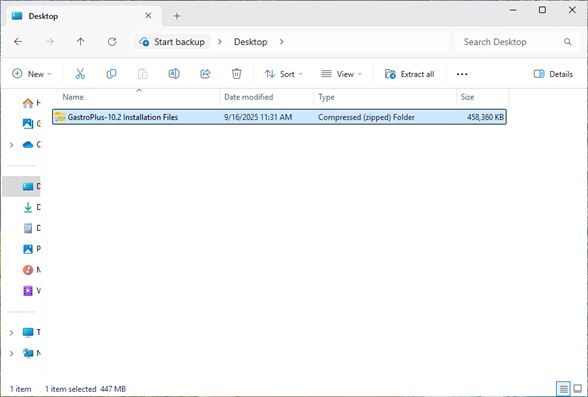
The first step in the process is to extract the files from the GastroPlus-10.2 Installation Files.zip file. Right-click on the GastroPlus-10.2 Installation Files.zip and select “Extract All…”. Accept the default destination folder and click on “Extract”. |
|
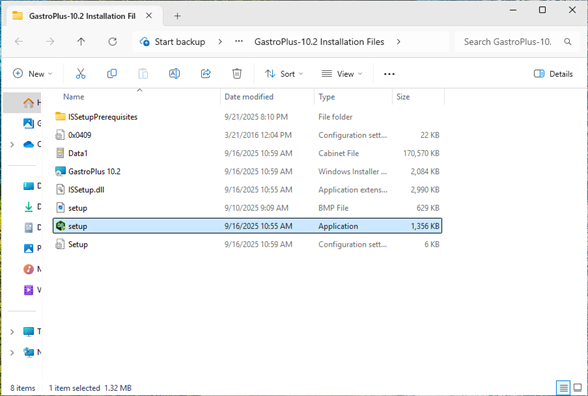
In the GastroPlus-10.2 Installation Files directory, right-click on “setup.exe” and select “Run as administrator”. |
|
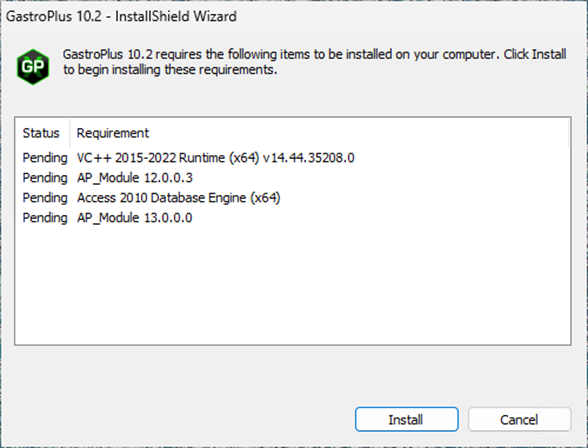
GastroPlus requires several items that may already be installed on your system. These items will be installed as needed. Click on “Install” and the required items will be installed. |
|
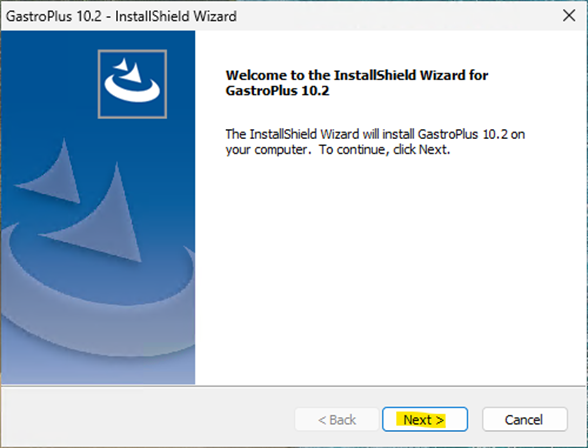
The GastroPlus installation wizard will begin. Click on “Next” to begin. |
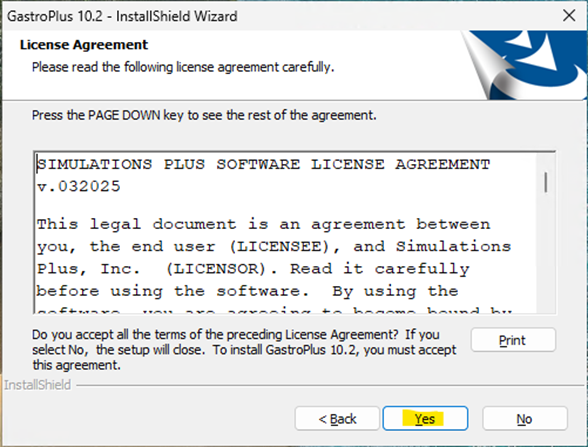
|
The license agreement will be displayed. Select “Yes” if you agree to the licensing terms and continue the installation. |
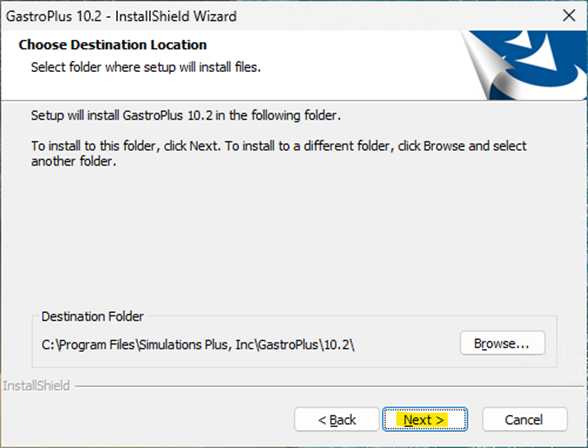
|
Select the installation directory for GastroPlus. Unless you have a specific need to install in a different directory, the default location is recommended. Click “Next”. |
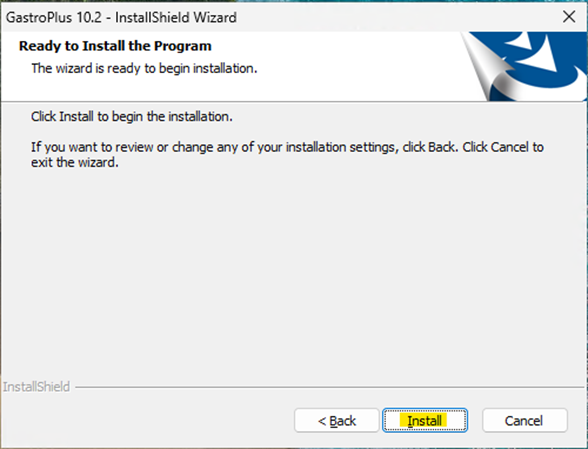
|
The installation has the information it needs to continue. Click “Install” to install GastroPlus on your computer. |
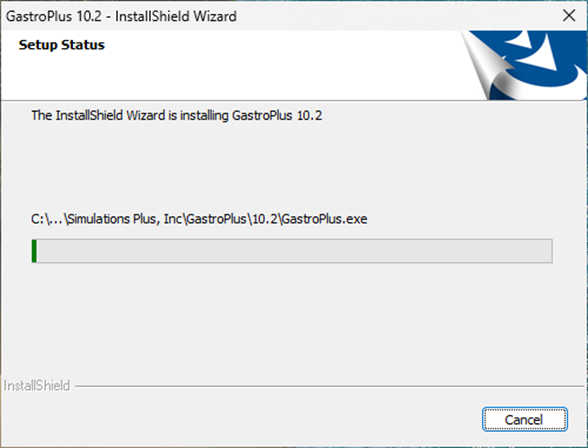
|
A progress bar will be displayed while GastroPlus installs the required files and components. |
|
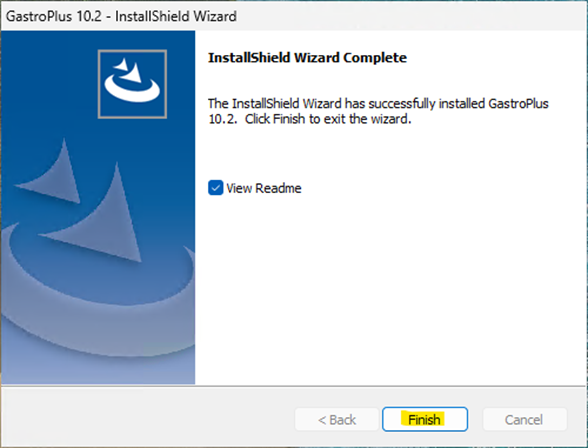
When the installation is complete, the Finish dialog will be displayed. Click on “Finish” to complete the installation. GastroPlus is now installed on your computer. |
|
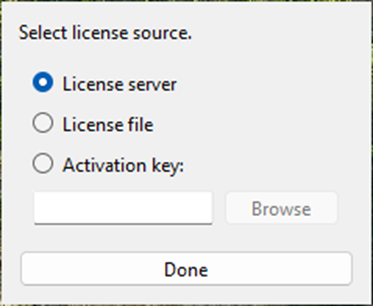
The first time GastroPlus starts it will need to know where to find a license file. Here are three options:
Refer to your email from our Licensing Team. Then click “Done” and GastroPlus will run. |